What this module is
Assets is where you track equipment and tools across your projects — what you own, its condition, who has it, and what it costs to keep running. It covers five things: the asset registry, preventive maintenance, compliance documents and inspections, checkout requests, and automatic due/overdue alerts.
Assets is available on the Enterprise plan. On any other plan the Assets menu doesn't appear, and the underlying pages return an upgrade message if you have a direct link to one. See "Plans, billing, and invoices" to upgrade.
Finding your way around
Once your workspace is on Enterprise, an Assets menu appears in the top navigation with four items:
- Assets — the full registry.
- Maintenance log — the same registry, pre-filtered to only assets with something due (maintenance, an expiring document, or an overdue work order).
- Inspection templates — manage the checklists used when you inspect an asset.
- Asset requests — the checkout queue: pending, approved, and past requests.
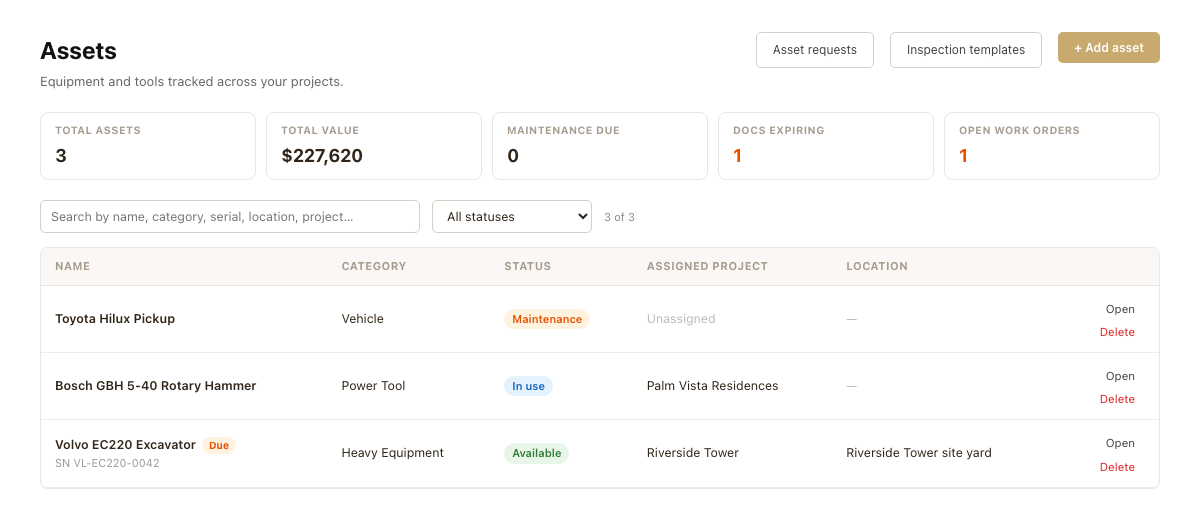
The asset registry
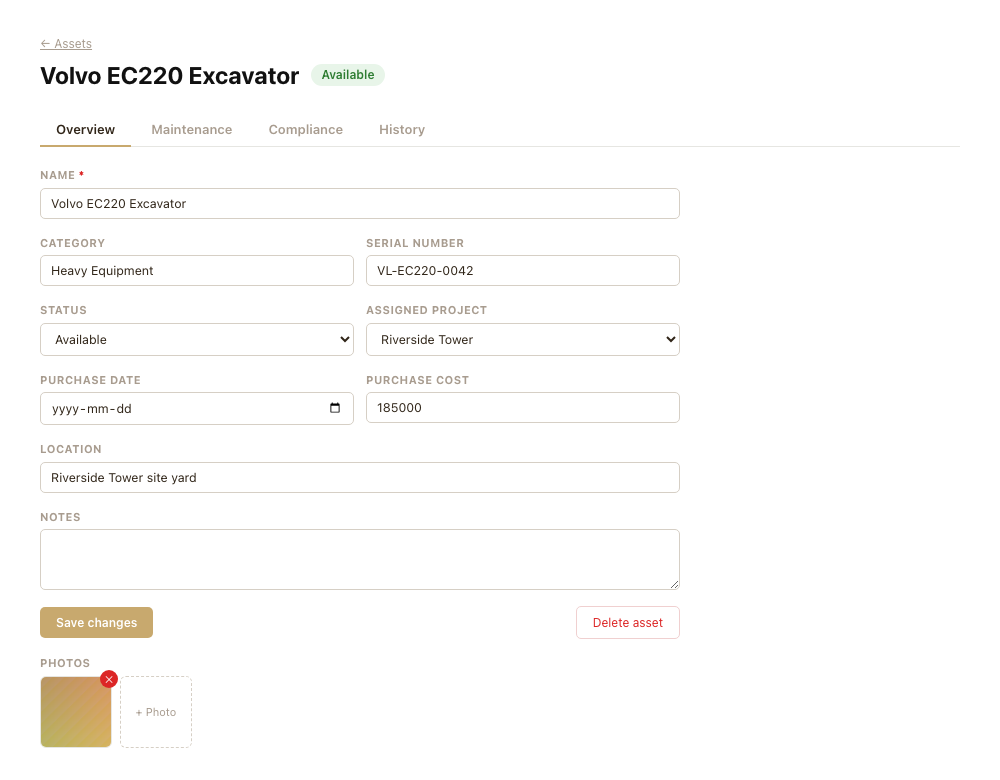
From Assets, click + Add asset to register equipment: name, category, serial number, status (Available, In use, Maintenance, Retired), purchase date and cost, an assigned project, location, and notes.
Click an asset's name (or Open) to reach its detail page, which has four tabs:
- Overview — edit any field, delete the asset, and attach photos.
- Maintenance — schedules and work orders (below).
- Compliance — documents and inspections (below).
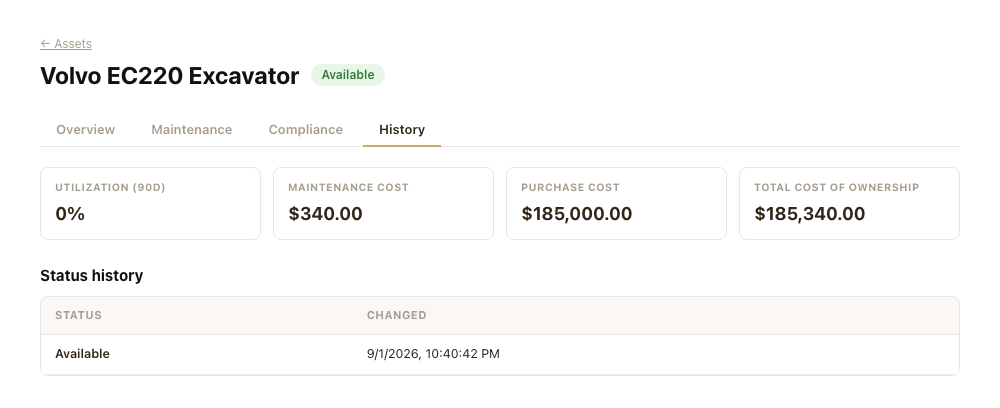
- History — status timeline, utilization %, and cost.
Status changes are recorded automatically, so the History tab always reflects what actually happened — you don't need to log status changes separately.
Maintenance schedules and work orders
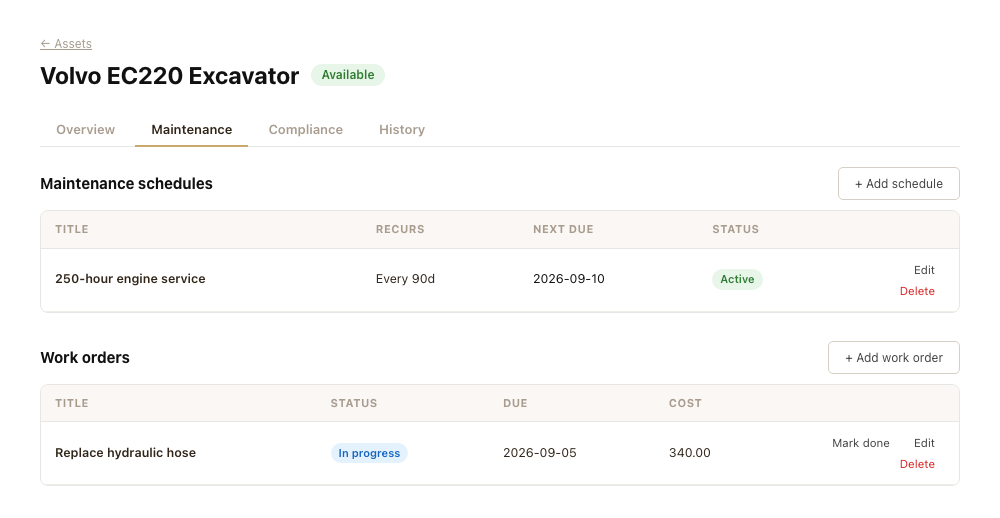
A schedule is a recurring or one-off maintenance task with a due date — for example "500-hour service" repeating every 30 days. Create one from the Maintenance tab with a title, next due date, and optional repeat interval. Leave the interval blank for a one-off task.
A work order is the actual job — optionally linked to a schedule. When you mark a linked work order Completed:
- If its schedule repeats, the schedule's due date automatically advances by the repeat interval.
- If the schedule was one-off, it's deactivated instead — it won't show up as due again.
Work orders you create without a linked schedule are just ad-hoc jobs (e.g. an unplanned repair) — track their cost and due date the same way.
Compliance: documents and inspections
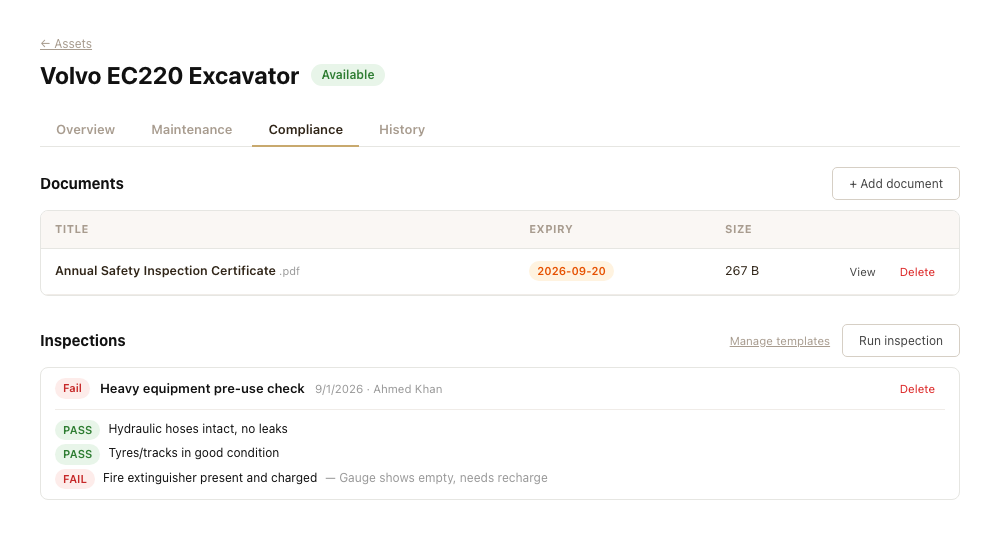
Documents are files attached to an asset — certifications, manuals, calibration records — with an optional expiry date. Upload one from the Compliance tab; a document within 30 days of expiring (or already expired) shows a highlighted date.
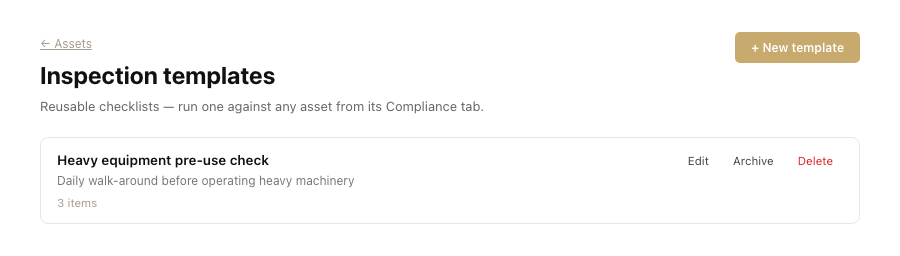
Inspections run a reusable checklist against an asset. Before you can run one, create a template from Inspection templates: give it a name and a list of checklist items (reorder them with the up/down arrows).
To run an inspection, open an asset's Compliance tab, click Run inspection, pick a template, mark each item Pass, Fail, or N/A, and add notes. The overall result is calculated automatically: any failed item makes the whole inspection a Fail; otherwise any N/A makes it Flagged; a clean sheet is a Pass.
Editing or archiving a template later never changes past inspections — each one keeps its own snapshot of the checklist and template name it was run against.
Checkout requests
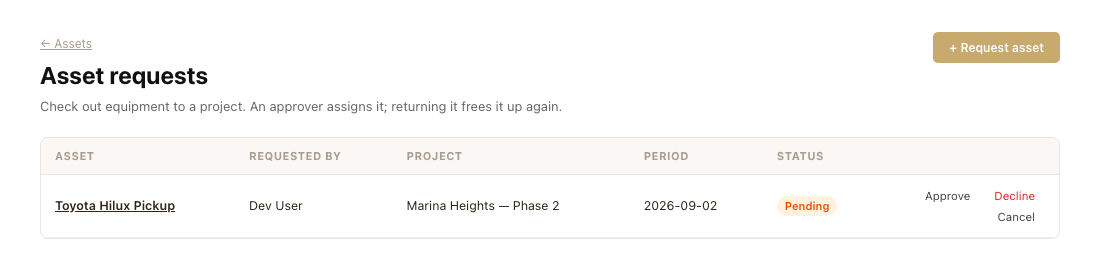
Use Asset requests to check equipment out to a project for a period instead of editing the assignment by hand:
- Click + Request asset, pick the asset, the project, and a start date (end date is optional).
- Someone with approve-level access on Assets approves or declines it from the same page.
- Approving sets the asset's status to In use and assigns it to that project — you'll see this reflected immediately on the asset's Overview tab and in its History.
- When the equipment comes back, click Mark returned to set the asset back to Available and clear the assignment.
You can also start a request directly from an unassigned asset's Overview tab via Request this asset for a project. You can cancel your own pending request at any time; anyone with edit-level access can cancel any pending request or mark an approved one returned.
Requesting, approving, and returning all post to your Inbox — the requester is notified when a request is approved or declined.
Fleet stats and the "Due" badge
The Assets list shows five tiles: total assets, total value, maintenance due, documents expiring, and open work orders. Any row with something needing attention gets a small Due badge next to its name — click Maintenance log in the Assets menu to see only those rows.
Per-asset numbers live on its History tab: utilization % over the last 90 days, maintenance cost (the sum of its work order costs), and total cost of ownership (purchase cost plus maintenance cost).
Automatic alerts
A daily check reviews every workspace's assets and posts an Inbox notification for:
- Maintenance due within 7 days (including anything already overdue).
- Documents expiring within 30 days (including anything already expired).
- Work orders past their due date that are still open.
Each item only re-alerts every few days while it stays outstanding, so your Inbox won't fill up with repeats of the same overdue task. Notifications link straight to the relevant tab on the asset.
Permissions
Assets is one module-level permission, with the usual three levels:
- View — see the registry, run nothing, request an asset for checkout.
- Edit — create/edit/delete assets, schedules, work orders, documents, inspections, and templates; cancel any pending request; mark an approved request returned.
- Approve — everything Edit does, plus approving or declining checkout requests.
Admins have full access regardless of their individual module permissions. Ask your workspace admin from Settings → Team if you need a different level.